On-Premises Relay
Connect your scanners to the reading team
A relay on your facility’s network sends studies from existing imaging equipment to HealAI Cloud PACS. Your technologists keep their familiar scanning workflow.
Request a demo
How it works
- 1
Receive from scanners
Scanners send studies to the relay over the facility network.
- 2
Queue during an outage
The relay holds incoming studies locally while the uplink is unavailable.
- 3
Reconnect and forward
When the link returns, the relay forwards queued studies while new scans continue.
- 4
Verify delivery
Check that the study appears in the intended reading workflow.
Keep the work at the scanner familiar
Your facility configures its imaging equipment to send DICOM studies to the relay. The relay forwards images to Cloud PACS so authorized readers can find them.
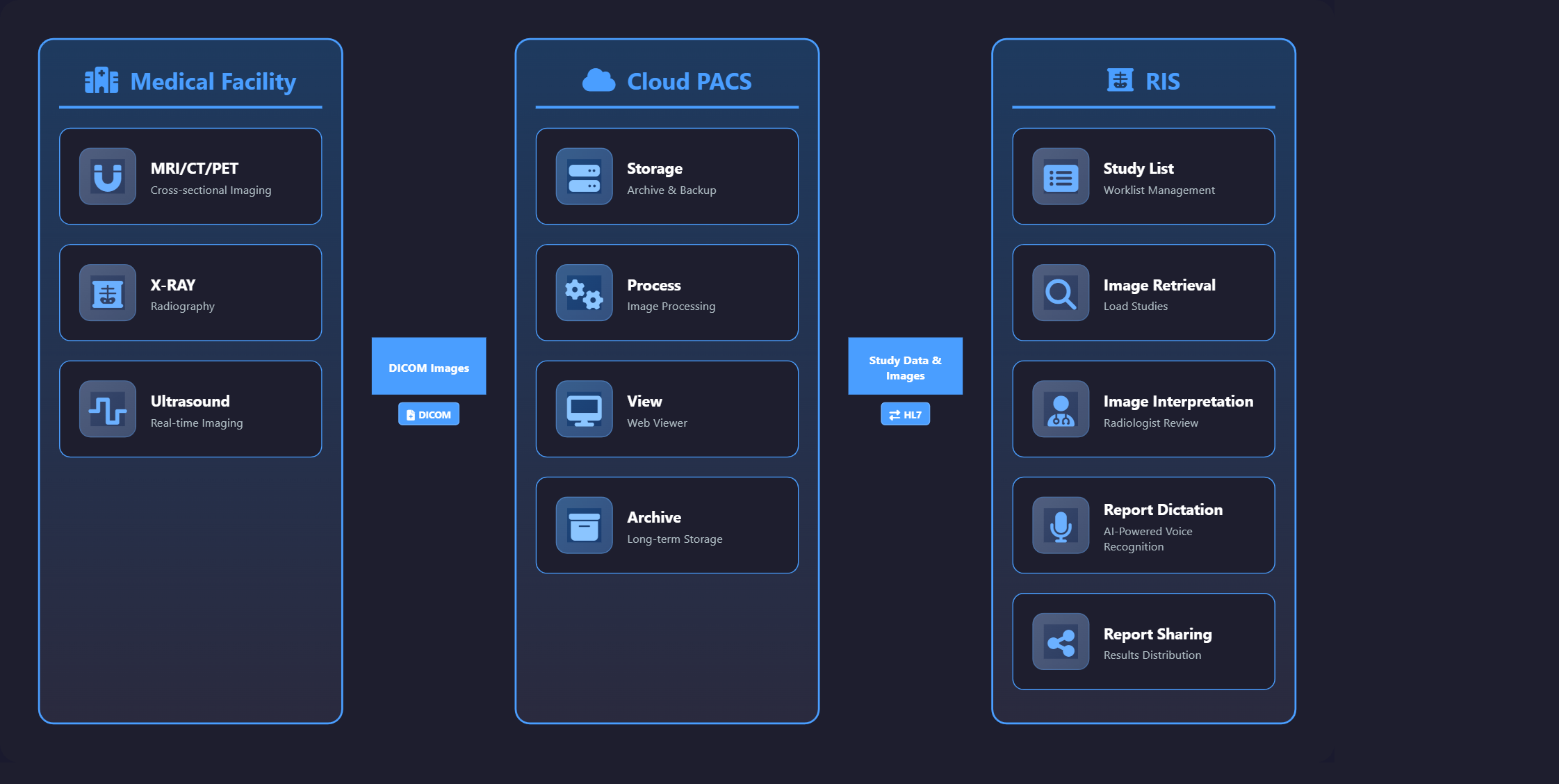
- Connect the relay on the facility network
- Configure the scanner’s DICOM destination
- Send a test study with your team
Queue studies during an internet interruption
The relay buffers studies locally when the connection drops and resumes sending when service returns. Facility teams can check relay status from the Admin Console.
Verify that the study reaches the reading team
Check receipt at the relay, then confirm that an authorized reader can find and open the study in Cloud PACS. These are separate checkpoints when testing a new scanner connection.
In practice
Test a connection before the first clinical case
Work through the handoff with the technologist, the facility team, and a reader.
Send a test study
Use a de-identified case from the scanner you plan to connect.
Check both points of receipt
Confirm the relay received it, then check that images are available to the reader.
Rehearse a lost connection
Interrupt the connection in a test environment and verify that queued studies become available after it returns.
Questions to bring to a demo
Does receipt at the relay mean the images are in the cloud?
No. Confirm that the upload completed and the study opens from the reader’s worklist.
Does the scan team have to learn a new acquisition process?
The facility configures the scanner’s DICOM destination. The technologist can continue the usual acquisition workflow.
Tell us how your team works
Share where studies come from, who reads them, and how reports reach the care team. We’ll use that context for your demo.
help@healai.care